2 The SpicyRPN Stack
The stack holds the numbers you are working with: operands awaiting a function and results awaiting their next use. In RPN, you enter the operands first, then press the function that uses them. There is no equals key to finish an expression. Each function acts immediately on the values in the required stack positions.
This chapter explains those positions and the movements between them. The short examples make the movements visible; chapter 3 then puts them to work in complete calculations. These rules describe the RPN workspace. ALG has its own entry engine and retains its own work when you switch modes.
2.2 Prepare a known starting state
2.3 Entering a number and pressing ENTER
2.4 Lift, drop, and the deepest register
2.5 Functions and operand order
2.6 Inspecting every register
2.7 Swapping, rolling, and dropping
2.8 Clearing X or clearing the stack
2.9 Recovering operands with LAST X and LAST Y
2.10 Choosing the stack depth
2.11 Arriving from another RPN calculator
2.1 Where the numbers wait
The main displayed number occupies S0, conventionally called X. The next position is S1, conventionally called Y. This manual uses both names: X means S0, and Y means S1. A single-operand function uses X; a two-operand function uses Y and X. Larger displayed register numbers identify successively deeper positions. These are names for positions, not permanent names for particular values. As the stack moves, a value can move from X to Y or back again.
SpicyRPN starts with a fixed stack of five registers, all containing zero. Figure 2.1 shows their order. Throughout this manual, stack diagrams put X/S0 at the bottom, matching the expanded stack display. The word deepest means the register farthest from X: S4 in this five-register stack. It appears at the top of the diagram.
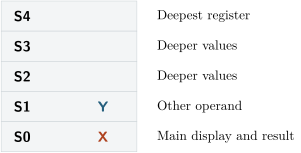
Each position holds one complete number. A complex number also occupies one position: its real and imaginary components travel together, as do its magnitude and angle when shown in polar form. Changing the number of displayed decimal places does not change the value held in a register. See chapter 8 and chapter 5 for those details.
The stack is working space, distinct from ordinary, statistical, and financial memory registers. A value that must remain available while you rearrange or clear the stack belongs in memory; see chapter 6.
2.2 Prepare a known starting state
SpicyRPN restores saved work when it opens. Before trying the examples, prepare the calculator using the steps below; a new launch does not clear it. The examples in this chapter, chapter 3, and chapter A use RPN, real-number mode, a fixed five-register stack, 600 working digits, and FIX 4. Angle units, date order, and payment timing do not affect these examples.
The fields in STACK and PREC are typed settings, not numbers entered on the calculator’s stack.
- 1.
- Cancel any open worksheet, then close any tool or stack inspector. Select RPN above the display. This cancels ordinary pending commands and shifts. If an ALG \(\Delta \)FIX prompt was active, the first press cancels that prompt; press RPN again and check the selected mode. There should be no f, g, or pending-command flag.
- 2.
- Press f CLEAR, the orange function of \(1/x\), to clear the stack and any unfinished RPN number. If COMPLEX is showing, press f CMPLX, the orange function of \(\div \), to return to real mode. If this reports unfinished ALG input, return to ALG, finish, correct, or clear that entry, then repeat the setup from step 1.
- 3.
- Press f STACK, the orange function of \(x\leftrightarrow y\). Set Depth (0 = unlimited) to 5 and press Apply.
- 4.
- Press g PREC, the blue function of 7. Set Working digits to 600 and Display digits to 4, then press Apply. To select fixed notation as well, enter 4 f FIX; FIX is the orange function of 7. This uses and removes the digit-count operand.
- 5.
- Show the Scientific panel if necessary, then press f CLEAR once more. The main display should read 0.0000, with FIX 4 and no ENTRY or pending-command flag.
In these introductory examples, the prepared start means these settings, no active shift or pending command, and a stack cleared with f CLEAR. Set up once, then repeat CLEAR before each independent example; do not clear between successive steps of one calculation. CLEAR preserves settings, memories, and saved operands, so memory flags may remain lit. The examples establish the operands they need. Section 2.8 and chapter 6 explain clearing scope.
2.3 Entering a number and pressing ENTER
Starting a new number reserves a new X position. On the first digit, decimal point, or EEX, the previous X moves to Y, the previous Y moves to S2, and so on. This movement is called stack lift. Further characters edit that same number; they do not lift the stack again. While you are typing, ENTRY is shown and the main display shows the entry as typed.
ENTER has two distinct uses:
- During number entry, it finishes the number in X. The stack has already lifted, so this press does not lift again or duplicate the number.
- When no number is being entered, it duplicates X by lifting a copy onto the stack. The original value becomes Y.
To enter two different operands, type the first number, press ENTER, then type the second. A function key finishes an active entry before calculating, so you can press the operator immediately after the second number. Typing more digits without ENTER would extend the first number instead.
Watch two operands take their places
Use the prepared start in section 2.2, then enter:
2 ENTER 3 +
The table follows each press. Integers stand for the stored values; the final display is 5.0000. Italics identify a number still being entered.
| Position | Cleared | 2 | ENTER | 3 | + |
| S4 | 0 | 0 | 0 | 0 | 0 |
| S3 | 0 | 0 | 0 | 0 | 0 |
| S2 | 0 | 0 | 0 | 0 | 0 |
| S1/Y | 0 | 0 | 0 | 2 | 0 |
| S0/X | 0 | 2 | 2 | 3 | 5 |
To duplicate a freshly typed number, use ENTER twice: the first press confirms it, and the second duplicates it. For example, starting with the same settings and a cleared stack, 6 ENTER ENTER + gives 12.0000. After a completed result, one ENTER is enough to duplicate it.
2.4 Lift, drop, and the deepest register
A lift makes room at X by moving existing values one position deeper. A drop moves deeper values toward X. An ordinary two-operand operation combines Y and X into one result in X; the old S2 becomes Y, and the remaining deeper values follow it down.
A fixed stack keeps exactly its configured number of positions. A lift therefore discards the previous deepest value. A drop instead repeats the deepest value to fill the vacated position. With five registers, the old S4 moves to S3 and remains in S4 as well. A drop does not fill the deepest position with zero unless the value already there was zero.
See both ends of a fixed stack
Use the same RPN, real-mode, fixed-depth-5, FIX 4 settings, with no pending command. Prepare the starting column of table 2.1 with:
f CLEAR 5 ENTER 4 ENTER 3 ENTER 2 ENTER 1 ENTER
The final ENTER confirms 1. Each action column below is a separate experiment from that starting column; repeat the preparation before trying another column.
| Position | Start | ENTER | 9 ENTER | + |
| S4 | 5 | 4 | 4 | 5 |
| S3 | 4 | 3 | 3 | 5 |
| S2 | 3 | 2 | 2 | 4 |
| S1/Y | 2 | 1 | 1 | 3 |
| S0/X | 1 | 1 | 9 | 3 |
2.5 Functions and operand order
A single-operand (unary) function uses X and replaces it with the result. The rest of the stack stays in place. Square root, reciprocal, and sine are examples. A two-operand (binary) arithmetic function uses both Y and X, leaves its result in X, and drops the deeper values by one position.
For subtraction and division, the order is \(Y-X\) and \(Y/X\). For a power, Y is the base and X is the exponent. For an indexed root, Y is the radicand and X is the root index. Enter the left-hand operand first. Table 2.2 gives complete short sequences.
| Calculation | Keys after clearing |
Result |
| \(9-4\) | 9 ENTER 4 \(-\) |
5 |
| \(12/3\) | 12 ENTER 3 \(\div \) |
4 |
| \(2^3\) | 2 ENTER 3 \(y^x\) |
8 |
| \(\sqrt [3]{8}\) | 8 ENTER 3 f \(\sqrt [x]{y}\) |
2 |
| \(\sqrt {9}\) | 9 \(\sqrt {x}\) |
3 |
If the operands are reversed, exchange them with SWAP (the \(x\leftrightarrow y\) key) before pressing the operator. The distinction matters for subtraction, division, powers, and roots even when swapping would leave a sum or product unchanged.
2.6 Inspecting every register
The main display shows X. To inspect S1/Y and all other positions, press the small triangle at the lower-right corner of the display. Its accessibility label is “Show full stack.” The expanded display opens at S0, with deeper registers above it, in the order shown in figure 2.1.
Scroll vertically to reach deeper positions. Each long number can be scrolled horizontally in its own row, with its exponent remaining visible. Real-number rows use larger digits with a ruler near the bottom when the number overflows; drag the digits to scroll without a scrollbar. In complex mode, each register shows both components of its one value. VoiceOver identifies the register with each component, for example, “Stack register S0, real component” and “Stack register S0, imaginary component.” In polar form, those labels identify the register’s magnitude and angle instead. Close the view with its triangle, labeled “Collapse stack,” or by tapping outside the expanded panel.
Inspection does not calculate, move values, finish an entry, or consume a pending command. If you open it midway through typing, S0 shows the unfinished entry and S1 already contains the preceding X. Use this view whenever you want to check operand positions without rolling the stack.
2.7 Swapping, rolling, and dropping
The stack controls let you arrange existing values without doing arithmetic. Their locations are collected in table 2.3. When a number is being entered, these commands finish it before acting on the stack.
Roll is available only with a fixed stack. SWAP works with an unlimited stack when at least two positions exist.
| Operation | Key sequence | Effect |
| SWAP | \(x\leftrightarrow y\) | Exchange X and Y; deeper values stay in place. |
| Roll down | R\(\downarrow \) | Move Y to X and each deeper value toward X; wrap old X to the deepest position. |
| Roll up | g R\(\uparrow \) | Move each value one position deeper; wrap the deepest value to X. |
| DROP | f DROP | Remove X; move Y and deeper values down. |
Both roll directions are cyclic: no value is lost or duplicated. Rolling once each way restores the original order. Rolling in one direction five times restores a five-register stack; for another fixed depth, use that many rolls.
DROP discards X instead of wrapping it around. In a fixed stack it repeats the deepest value, as described in section 2.4. In an unlimited stack it shortens the stack by one; dropping its last value leaves a single zero in X.
Table 2.4 uses the same prepared stack and settings as table 2.1. Repeat that preparation before each action; the columns are independent results, not successive steps.
| Position | Start | SWAP | Roll down | Roll up | DROP |
| S4 | 5 | 5 | 1 | 4 | 5 |
| S3 | 4 | 4 | 5 | 3 | 5 |
| S2 | 3 | 3 | 4 | 2 | 4 |
| S1/Y | 2 | 1 | 3 | 1 | 3 |
| S0/X | 1 | 2 | 2 | 5 | 2 |
2.8 Clearing X or clearing the stack
CLx, the blue function of the backspace key, replaces X with zero. It leaves every deeper position in place and saves the previous X in Last X. If a number is still being entered, CLx first finishes that number, then saves and clears it. Last Y is unchanged.
CLEAR, the orange function of \(1/x\), clears the whole RPN stack and discards any unfinished entry. A fixed stack retains its configured depth, filled with zeros; an unlimited stack returns to one zero in X. CLEAR preserves both Last X and Last Y. It does not clear ordinary, associative, statistical, or financial memory, and does not reset settings.
Neither operation removes an X position in the way DROP does. After CLx, starting a new number lifts the zero just created into Y. Use backspace to correct individual digits while an entry is active. Deleting the last character ends a real-number entry with zero in its reserved X position; it does not reverse the lift that began the entry. When no entry is active, backspace acts as CLx.
2.9 Recovering operands with LAST X and LAST Y
The registers Last X and Last Y hold saved operands outside the working stack. They are not the current S0/X and S1/Y positions. Recall LAST X with the blue function of \(x\leftrightarrow y\); recall LAST Y with the blue function of \(1/x\). Each recall lifts the saved value into X, moving the current result to Y. Recalling either saved operand leaves both saved values unchanged.
Successful single-operand arithmetic saves the original X and also the current Y, if that position exists. Two-operand arithmetic, including percentages, saves both operands. A later calculation can therefore replace the saved pair. With an unlimited stack containing only X, a single-operand function updates Last X and leaves Last Y unchanged.
Entry, ENTER, SWAP, roll, DROP, and CLEAR preserve the saved operands. Constants and random-number generation preserve them too. CLx and ordinary memory recall replace Last X with the previous X, leaving Last Y alone. Specialized commands are covered in the reference note below.
Recover the operands of a mistaken addition
Use RPN, real mode, fixed depth 5, and FIX 4, with no pending command. Start with:
f CLEAR 12 ENTER 3 +
The result is 15.0000. The saved operands are Last X = 3 and Last Y = 12. To calculate the division you intended, remove the mistaken result, recall the first operand, recall the second, and divide:
f DROP g LAST Y g LAST X \(\div \)
Before division, Y contains 12 and X contains 3. The result is 4.0000. DROP and the two recalls preserve the saved pair until division uses it.
These are operand-recovery commands, not general undo. They do not restore a complete earlier stack, recover values lost beyond a fixed stack’s deepest position, or reverse a memory or settings change. Recover the operands before another operation overwrites them.
2.10 Choosing the stack depth
Changing to a larger fixed depth adds zero-filled positions at the deep end. Changing to a smaller fixed depth keeps X, Y, and as many following positions as fit; deeper values are discarded. Changing from a fixed stack to unlimited keeps every existing position, including zeros. It does not remove padding left by the fixed stack. Changing from unlimited to fixed similarly retains the positions nearest X, adding zeros or discarding deeper values to reach the chosen depth.
To change the depth, press f STACK, the orange function of \(x\leftrightarrow y\). In the field labeled “Depth (0 = unlimited),” enter a whole number from 2 through 1000 for a fixed stack, or 0 for an unlimited stack, then press Apply. The number in this field is a setting, not an operand you enter on the calculator’s stack. Applying the setting finishes any active number entry before changing the depth.
An unlimited stack grows on each lift and shrinks on each ordinary binary operation or DROP. There is no deepest-register repetition and no fixed capacity at which a lift discards a value. When it would otherwise become empty, DROP leaves one zero in X. Starting a new number still lifts that zero; zero is an ordinary stack value. A two-operand function or SWAP requires at least two positions, and reports insufficient operands if only X exists. Roll up and roll down are unavailable in unlimited mode, regardless of its current number of positions.
Choose a fixed depth when you want a bounded stack with cyclic roll and deepest-register repetition. Choose unlimited when you want pending values to remain until explicitly consumed or dropped. Neither choice replaces memory for values you want to name and reuse across calculations.
2.11 Arriving from another RPN calculator
If you are accustomed to a traditional four-register HP calculator, the familiar X/Y operand order and fixed-stack repetition will help you get started. SpicyRPN adds a fifth register by default, displays positions as S0, S1, and so on, and lets you choose a different depth. You can select four registers if that capacity suits your work.
Pay particular attention to the timing of entry: the first digit lifts, the first ENTER confirms the entry, and a further ENTER duplicates it. Also remember that CLx saves the cleared X, while CLEAR preserves both saved operands. Use the full-stack view to check these effects as you develop a feel for the calculator. Chapter 3 begins the practical calculations; chapter A provides extended practice, and chapter B discusses the reasons and history behind RPN.