1 Getting Acquainted with SpicyRPN
SpicyRPN is a scientific and financial calculator for iPhone, iPad, and Mac. Its keyboard brings together everyday arithmetic, advanced mathematical functions, statistics, and financial calculations. You can work in reverse Polish notation (RPN) or enter a written expression in algebraic mode (ALG). Multiple-precision arithmetic lets you choose how many digits the calculator uses internally, while separate display settings control how many digits you see.
This chapter introduces the controls and the information on the display. There is no need to perform a calculation yet. If RPN is new to you, read the explanation of the stack in chapter 2 before trying the first calculations in chapter 3.
1.2 Multiple precision in everyday use
1.3 Installation and first launch
Identifying your version
1.4 A tour of the display
1.5 Scientific and Financial keyboard panels
Key-click feedback
1.6 Orange and blue shift functions
1.7 Choosing RPN or ALG
1.8 Flags and pending operations
Recognizing and canceling a command
1.9 Help, keyboard input, and accessibility
Using a physical keyboard
Accessible controls
1.10 Your work is saved automatically
1.1 What the calculator provides
The same calculator can serve several kinds of work. Its scientific functions include powers and roots, logarithms, trigonometry, hyperbolic functions, factorials, and special functions such as Gamma and the error function. You can use real numbers or paired real and imaginary components, with rectangular or polar presentation for complex values. The conversion tool handles quantities such as length, mass, temperature, energy, and time.
For repeated work, ten ordinary memory registers hold values for later use. Associative memory identifies a stored value by the real component of a numeric key, in either entry mode. Separate banks hold statistical accumulators, financial inputs, and cash flows. These banks let you retain the data for one task while carrying out other calculations.
Work |
Where to begin |
Everyday arithmetic |
RPN stack and first calculations in chapter 2 and chapter 3; algebraic entry in chapter 4. |
Scientific and complex mathematics |
Functions, angle units, and complex values in chapter 7 and chapter 8. |
Units and stored values |
|
Statistics |
Samples, averages, standard deviations, and linear regression in chapter 10, in either entry mode. |
Finance |
Loans and savings in chapter 11; NPV and IRR in chapter 12; dates, bonds, and depreciation in chapter 13, in either entry mode. |
RPN is the initial entry mode and has a five-register stack by default. You can later choose a different fixed depth or an unlimited stack. ALG provides a separate expression editor with parentheses, precedence, functions, and a previous-answer value. Scientific functions, complex controls, ordinary memory, precision settings, and conversions are available in both entry modes. Statistics, finance, and associative memory use stack operands in RPN and explicit computation or labeled worksheets in ALG.
1.2 Multiple precision in everyday use
Working precision is the number of digits available for the calculator’s arithmetic. SpicyRPN starts with 600 decimal working digits and lets you select from 16 to 10 000.
Display precision is a presentation choice. The initial FIX 4 setting normally shows four places after the decimal point, so the initial zero appears as 0.0000. A short display does not mean that the calculation used only four decimal places. For example, a value near \(1/3\) can appear as 0.3333 while many more digits are retained internally. Fixed, scientific, and engineering notation offer different ways to present the same stored value.
The PREC tool separates Working digits from Display digits. Open it with g followed by 7, the key carrying the blue PREC legend. You can start with the defaults; chapter 5 explains when and how to change them.
1.3 Installation and first launch
SpicyRPN Release 2.0.0 supports iOS/iPadOS 18.0 and later, and macOS 15.0 Sequoia and later on compatible Apple-silicon and Intel Macs. The Mac application includes both arm64 and x86_64 code. The US$1.99 App Store price pays for the integrated, easy-to-install iOS distribution. Install it using the App Store on a supported device. Release 2 follows the original SpicyRPN application, which appeared on the App Store around 2019.
The matching source ZIP and compiled manual are available at https://spicyrpn.com/. You can build the application with Xcode on a Mac supported by the selected Xcode version. The source-build procedure prepares the included mathematical libraries for the intended destination, then builds the SpicyRPN scheme for Mac, an iPhone or iPad simulator, or a physical iPhone or iPad. A physical-device build requires signing configuration. Chapter D gives the complete instructions.
When you open an installation with no saved calculator state, the calculator shows zero and the Scientific panel. Its initial settings are listed in table 1.2. On later launches, SpicyRPN restores your saved work instead of returning to these defaults.
| Setting | Initial choice |
| Entry mode | RPN |
| Stack | Five registers, initially zero |
| Numbers | Normal real-number mode |
| Angle unit | Degrees, shown as DEG |
| Display | FIX 4, initially 0.0000 |
| Working precision | 600 decimal digits |
| Date order | Month/day/year, shown as MDY |
| Payment timing | End of period; BGN is absent |
Identifying your version
This manual covers application version 2.0.0, build 3. Open HELP, choose Licenses & Acknowledgments, then Credits to read the installed version and build.
Keep both numbers when reporting a problem. If you built the application yourself, also record the source package version and any local changes. Include the entry mode, settings, starting values, and key sequence with a report; the version alone does not describe a calculation.
1.4 A tour of the display
The display is an instrument panel: the large number is only one part of the information it provides. Read the entry mode above it, the flags along its top edge, and the small detail and status lines below the number. Figure 1.1 shows the arrangement in a normal real-number RPN view.
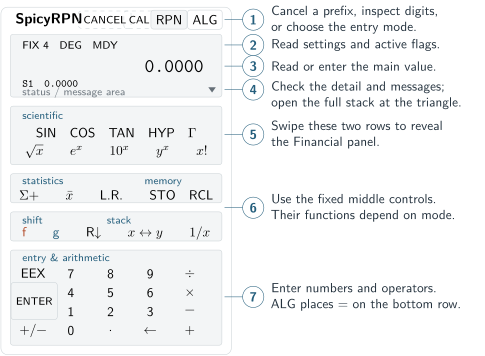
The header contains the RPN and ALG buttons; the selected button is emphasized. While a shift, multi-key command, or ALG worksheet is active, CANCEL appears beside the branding. It cancels a pending command without changing your calculation, or closes a worksheet while preserving its accepted work. When a number is too long to fit, the header also offers CAL, which shows or hides a digit ruler.
The flag row identifies settings such as FIX 4, DEG, and MDY. Additional flags appear for active shifts, unfinished entry, pending commands, and occupied memory banks. They are explained in section 1.8.
The large number is the active entry or result. In RPN it is X, listed as S0 in the full-stack display. Open the full-stack view to read Y at S1 and to inspect deeper registers. Real RPN devotes the main display to larger X digits; complex RPN shows both components of X. Thus an instruction to read X means read the main value or S0; an instruction to read Y means read S1. These are two naming conventions for the same positions, not separate registers. Chapter 2 explains how values move between them. In ALG, the smaller line shows the expression instead, in both real and complex mode.
The status area supplies prompts and messages. A command such as STO uses it to tell you what the calculator expects next. An error or a complex-number warning can occupy this area, so read it when the result or the next key’s behavior is unexpected.
The small triangle at the lower right opens the full stack in RPN. Its rows are labeled S0, S1, S2, and so on: X is S0, Y is S1, and larger numbers are deeper positions. Opening this view does not perform a calculation. Close it with its collapse control or by pressing outside the expanded panel. ALG has no RPN stack inspector.
Long numbers scroll horizontally. Drag the digits to inspect more of the number; an exponent remains pinned in place. In real RPN, the CAL ruler appears only for an overflowing number and shares the bottom row with the stack triangle. The ruler marks groups of five digits. Complex mode provides two component rows for the current value. Both ALG displays place the expression on the bottom line, below calibration, and use digit dragging without scrollbars. The expression is also available to VoiceOver. Complex RPN retains its scrollbars. See chapter 5 and chapter 8 for these displays in detail.
1.5 Scientific and Financial keyboard panels
In portrait, the top two keyboard rows form a sliding panel. Swipe left across those rows to reveal Financial; swipe right to return to Scientific. The remaining controls stay in place. The Scientific panel contains functions such as SIN, COS, roots, powers, and logarithms. The Financial panel contains the five time-value-of-money keys and the cash-flow keys, with further financial and date operations on their shifted legends.
In a sufficiently wide landscape view, both panels are visible in the left bank. In RPN, the right bank contains the shift and stack controls, followed by entry and arithmetic. In ALG, the Expression row sits below the two panels on the left; Shift and Memory sit above entry and arithmetic on the right. Resizing a Mac window can change the arrangement in the same way. Across the two panels and fixed controls, RPN has 49 key positions and ALG has 50; portrait shows 39 in RPN or 40 in ALG. The keyboard itself does not scroll vertically.
On iPad, the calculator fills the available area with proportionally spaced keys, larger labels, and an enlarged display. The layout adapts when you rotate the device, retaining the same functions and panel behavior described here.
Changing panels only changes which keys are visible. It preserves an unfinished number or expression and does not consume an active shift or a pending command. If STO is showing when you swipe, for example, it will still be waiting for a storage destination afterward.
Key-click feedback
Enabled calculator keys play a soft click in both RPN and ALG, whether you tap a key or use its physical-keyboard shortcut. This includes shifts, pending-command selections, and operations that report an error. The header’s RPN, ALG, CAL, and CANCEL buttons also click, as does Escape when canceling or clearing calculator input. Disabled keys, unhandled keyboard characters, scrolling, and changing panels do not play a click.
The click confirms a key press; it does not indicate that a calculation succeeded or change any stored value. Its audibility depends on the system’s audio settings; on iPhone and iPad, clicks respect Silent mode and mix with background audio. The GOAT command plays its separate sound independently of key clicks; see GOAT on page 496.
1.6 Orange and blue shift functions
Many keys carry a main legend and one or two alternate legends. Press the key by itself for its main function. Press the orange f first for its orange function, or the blue g first for its blue function. These are successive presses: you do not hold the shift key while pressing the next key.
The 7 key illustrates the arrangement:
| Press | Selected function |
| 7 | Enter the digit 7. |
| f 7 | Select FIX, the orange legend. Its entry procedure depends on the entry mode; see chapter 5. |
| g 7 | Open PREC, the blue legend, to inspect or change working and display digits. |
The display’s f or g indicator confirms the selected shift. Pressing the same shift again cancels it; pressing the other shift selects that other layer. A shift normally applies to one following key, then releases. The chosen function may itself begin a command that needs another key, such as MCLR or inverse hyperbolic selection. If a key has no legend for the selected layer, the calculator reports that it has no such alternate function.
To become familiar with shifting without changing a numerical value, start with no pending command, no active shift, and no tool open. Press g 7. The Precision & display panel opens. Read its two fields, then press Close without changing them. This is also a convenient way to check the current working precision.
1.7 Choosing RPN or ALG
An ordinary mode selection cancels active shifts and pending command prefixes. Finish or cancel a \(\Delta \)FIX digit-count prompt before switching: while that prompt is active, the first mode-button press cancels the prompt and leaves the entry mode unchanged.
Select RPN or ALG with the buttons in the header. In RPN, you enter the operands before choosing an operation. The stack holds those operands and intermediate results. In ALG, you build an expression and press = to evaluate it. In ALG, the left entry column has normal-size EEX, \(1/x\), +/\(-\), and = keys from top to bottom, placing = on the bottom row. Orange \(1/x\) selects INT; blue \(1/x\) selects FRAC. = has no shifted legends.
Other controls change with the mode. ALG has one five-key Expression row: (, ), FUNC, CPT, and CLEAR. In portrait it sits above f, g, and the three Memory keys ANS, STO, and RCL, in that order. The Scientific panel, number keys, arithmetic keys, and ordinary memories remain available. The CPT main key starts an explicit financial computation; orange STAT and associative-memory legends open labeled worksheets. See section 4.11 and section 4.12.
The two modes preserve independent working areas. Switching modes does not evaluate an unfinished expression, finish an unfinished number, or copy the displayed operand into the other mode. When you return, that mode’s work is still available. Precision, angle and display settings, complex mode, and memory banks are shared, however. A change to a shared setting in one mode also applies in the other.
The statistical and financial chapters give RPN examples and separate ALG worksheet procedures. If you prefer written expressions, use ALG and continue with chapter 4. For RPN, continue with chapter 2; it explains where the numbers go before you begin calculating.
1.8 Flags and pending operations
A flag can describe a setting, announce stored data, or explain why the calculator is waiting for another key. These meanings are different. For example, MEM means that an ordinary memory register contains stored data; STO means that a storage command is waiting for its destination. Neither means that you should type a new number without first checking the pending command.
|
Indicator |
What it tells you |
|
FIX, SCI, ENG and a count |
The notation and display-digit setting. |
|
DEG, RAD, GRAD |
The selected angle unit: degrees, radians, or gradians. |
|
MDY, DMY |
Month/day/year or day/month/year date order. |
|
COMPLEX |
Complex-number mode is active. |
|
BGN |
Payments occur at the beginning of each period. Its absence means end-of-period timing. |
|
f, g |
An orange or blue function is selected for the next key. |
|
ENTRY |
A number is being entered in RPN, or an ALG expression is unfinished. |
|
STO, RCL |
Choose a register to store in or recall. A modifier in STO+, STO\(-\), STO\(\times \), or STO\(\div \) identifies arithmetic storage. |
|
HYP, INVHYP |
Choose SIN, COS, or TAN for a hyperbolic or inverse hyperbolic operation. |
|
FUNC |
ALG is waiting for the function to insert before its arguments. |
|
CPT |
ALG is waiting for a TVM register, NPV, or IRR to compute. |
|
\(\Delta \)FIX |
ALG is waiting for a display-digit count, accepted with =. |
|
MCLR |
The next key selects a group to clear. |
|
MEM, ASSOC |
Ordinary registers or associative memories contain stored entries. |
|
STAT, FIN, CF |
Statistical registers, financial registers, or cash flows contain stored entries. |
Memory flags indicate occupied storage, including an explicitly stored zero. They do not report whether the stored values are suitable for the calculation you are about to perform. The flags also remain meaningful in ALG: a STAT or FIN flag shows shared bank contents, including data entered in either mode.
Recognizing and canceling a command
Read the status prompt whenever a command flag appears. Press the header’s CANCEL button to dismiss any pending shift or command, including STO, RCL, MCLR, HYP, FUNC, CPT, and the ALG FIX digit-count prompt. A shift and command selected together are both canceled. Your unfinished number, expression, stack, memories, and settings remain unchanged; a displayed error is also dismissed. The cancellation is saved for relaunch.
CANCEL appears while one of these selections is waiting for a key or an ALG worksheet is active. The worksheet’s own CANCEL and the header’s CANCEL both discard unaccepted field edits and return to the preserved main expression; previously accepted values and completed computations remain. Typing a number or leaving an ALG expression unfinished does not, by itself, make CANCEL appear.
Use CANCEL when you want to leave a pending selection without editing your numbers. Backspace, shifts, and Escape have additional context-dependent uses; section 14.4 gives the complete cancellation guide. Clearing memory groups is covered in chapter 6.
1.9 Help, keyboard input, and accessibility
For a quick reminder, start with no pending command or active shift and press g RCL, selecting its blue HELP legend. HELP opens the RPN key guide or ALG key guide for the current mode. Each guide covers that mode’s primary and shifted keyboard functions, grouping related functions together. Keys from the other mode are not included. Both guides have three topics: Entry, Memory, and Tools. Each topic has separate, spaced entries with key-style labels: black for primary functions, orange for orange-shifted functions, and blue for blue-shifted functions. Scroll within the topic to read further entries; the licensing link remains fixed below the scrolling content. Select a topic, then use Close to return to the calculator. Parameter panels such as PREC also provide guidance above their fields. They show an Apply button to accept changes and keep the panel open if an input needs correction.
The Licenses & Acknowledgments link at the bottom of HELP opens a separate sheet with Credits, MIT, GPLv3, and LGPLv3 tabs. Each tab scrolls; the full license texts are available offline. Select Done to return to HELP without changing your calculation. MIT covers original SpicyRPN material; the GNU licenses cover the libraries. The same complete license texts appear in chapter E.
Using a physical keyboard
A Mac keyboard or a connected keyboard can enter numbers and many commands. Click or tap the display to give calculator input focus if typing is not reaching it. When the stack inspector is open, physical Escape closes it; calculator input is held back while you inspect the stack. Inside a parameter panel, keyboard input belongs to that panel. The shortcuts select the corresponding calculator keys, so an active f or g also affects a following digit or operator typed on the physical keyboard.
Physical key |
Calculator action |
0–9, . |
Digits and decimal point. |
+, -, *, / |
Addition, subtraction, multiplication, and division. |
e or E |
EEX, for exponent entry. |
s or S |
+/\(-\), to change sign. |
f, g |
Orange and blue shift. |
Return or = |
ENTER in RPN; = in ALG. |
Backspace/Delete |
The calculator’s backspace key. |
(, ), , |
Parentheses and a function-argument separator in ALG. |
Escape |
Cancel an active shift, pending command, or error message; with none active, clear X or the current entry. |
The letter e enters an exponent, not Euler’s constant, and the minus key selects subtraction rather than the sign-change key. Use s for sign changes, including an exponent’s sign. The complete shortcut list is in chapter 15.
Accessible controls
Keys provide spoken function names, including names for mathematical legends. Their accessible names follow the selected orange or blue layer, and shift keys report whether they are selected. The mode buttons identify the active entry mode. Display values, exponents, status messages, and errors also have accessible labels and values.
The portrait panel offers named actions Show scientific panel and Show financial panel, so changing panels does not depend on a drag gesture. The display offers Focus numeric entry; the RPN triangle is named Show full stack. Number and stack scroll controls provide adjustable actions for moving through content. The interface also respects the system’s Reduce Motion setting for panel and key animations. Use these names when navigating with assistive technology rather than relying on color or position alone.
1.10 Your work is saved automatically
SpicyRPN saves calculator actions as you work, including individual keystrokes, in a local database belonging to the application. There is no separate Save step before closing it. Saved work includes the RPN stack, the independent ALG expression and answer, memories, settings, unfinished entry, and pending commands. Active worksheets also resume with their saved fields and results.
Reopening the application therefore resumes a working calculator, which may still be waiting for the next digit or the destination of a STO command. Read the mode, flags, and status prompt before continuing. Closing the application is not a clearing operation.
If a save fails, the calculator reports the problem and attempts to restore the last successfully saved state. If it cannot restore the database, it reports an error instead of silently starting a new calculator. Follow the saved-state guidance in chapter 14 when such a message appears.
With the layout familiar, the next step for RPN is to understand the stack in chapter 2. ALG users can continue directly to chapter 4.